---
title: Canvas
description: Create and edit text documents, code, and spreadsheets
---
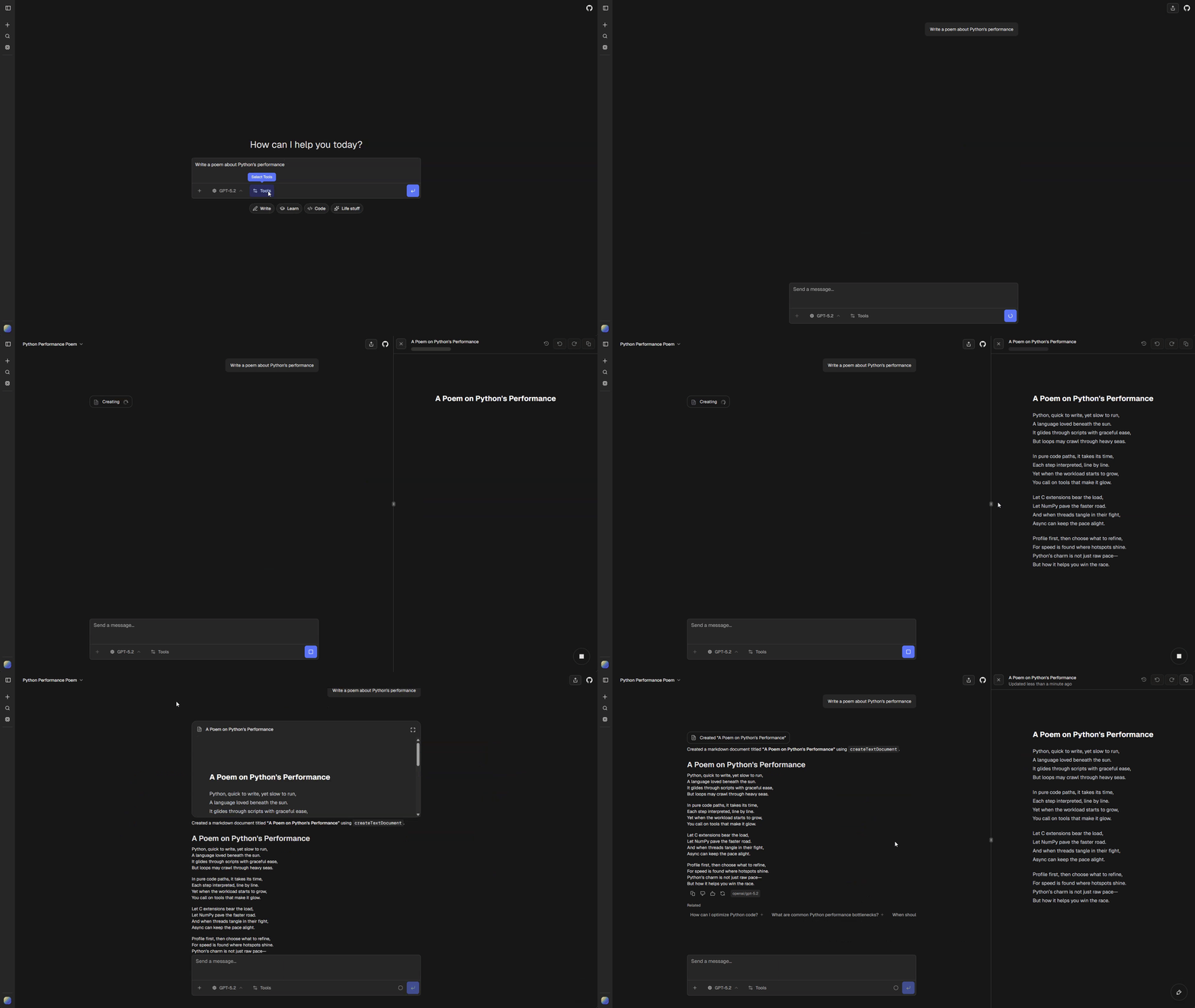
Canvas lets you create and edit documents directly in chat. The AI creates text documents, code files, and spreadsheets in a side panel where you can view, edit, and refine them.
 ## Canvas types
You can create three types of canvas:
| Type | Best for | Features |
| --- | --- | --- |
| **Text** | Essays, emails, reports, documentation, and other written content | Markdown support, diff view, version history, direct editing, polish tool |
| **Code** | Python scripts, JavaScript, TypeScript, and other code files | Syntax highlighting, Python execution (via Pyodide), version history, console output |
| **Sheet** | Data tables, datasets, and CSV files | Spreadsheet editor, CSV export, data visualization via Python |
## Creating a canvas
When you ask the AI to create something substantial, it automatically creates a canvas with the appropriate type. You can also request specific types:
- **Text documents**: "Write a professional email about..." or "Draft an essay on..."
- **Code**: "Create a Python script that..." or "Write a React component for..."
- **Spreadsheets**: "Create a spreadsheet with..." or "Build a data table for..."
The AI uses dedicated tools to create documents:
- `createTextDocument` for markdown text content
- `createCodeDocument` for code files (filename determines syntax highlighting)
- `createSheetDocument` for CSV-format spreadsheets
## Editing documents
### Direct editing
Click into any canvas to edit directly. Changes auto-save after you stop typing.
### AI-assisted editing
Ask the AI to make changes and it will update the document:
- "Make this code more concise"
- "Fix the typos in this email"
- "Add a column for timestamps"
The AI reads the current document content before making edits to preserve context.
### Version history
Every change creates a new version. Navigate between versions using the controls in the canvas header:
- **Undo** (left arrow): View the previous version
- **Redo** (right arrow): View the next version
When viewing an older version, a footer appears letting you return to the latest version.
### Diff view (text only)
Text documents support a diff view that highlights additions and deletions between consecutive versions. Toggle diff view using the history icon in the canvas header.
## Canvas toolbar
A floating toolbar appears at the bottom-right of the canvas. Each canvas type has different quick actions:
### Text toolbar
- **Add final polish**: Checks grammar, adds section titles, improves readability
### Code toolbar
- **Add comments**: Adds explanatory comments to the code
- **Add logs**: Adds debug logging statements
### Sheet toolbar
- **Format and clean data**: Cleans and formats the spreadsheet data
- **Analyze and visualize**: Creates a Python code canvas with data analysis and visualization
## Code execution
Python code can run directly in the browser using Pyodide. Click the **Run** button to execute.
Execution features:
- Console output displays below the code editor
- Matplotlib plots render as images in the console
- Package imports are loaded automatically
- Standard library only (no external dependencies)
Code execution is only available for Python files. The run button is disabled for other languages.
## Canvas actions
Each canvas type has action buttons in the header:
### All types
- **Undo/Redo**: Navigate version history
- **Copy**: Copy content to clipboard
### Text only
- **View changes**: Toggle diff view comparing current and previous version
### Sheet only
- **Copy as CSV**: Exports clean CSV (removes empty rows)
## Configuration
Canvas is built into the chat interface. No additional configuration is required.
## Canvas types
You can create three types of canvas:
| Type | Best for | Features |
| --- | --- | --- |
| **Text** | Essays, emails, reports, documentation, and other written content | Markdown support, diff view, version history, direct editing, polish tool |
| **Code** | Python scripts, JavaScript, TypeScript, and other code files | Syntax highlighting, Python execution (via Pyodide), version history, console output |
| **Sheet** | Data tables, datasets, and CSV files | Spreadsheet editor, CSV export, data visualization via Python |
## Creating a canvas
When you ask the AI to create something substantial, it automatically creates a canvas with the appropriate type. You can also request specific types:
- **Text documents**: "Write a professional email about..." or "Draft an essay on..."
- **Code**: "Create a Python script that..." or "Write a React component for..."
- **Spreadsheets**: "Create a spreadsheet with..." or "Build a data table for..."
The AI uses dedicated tools to create documents:
- `createTextDocument` for markdown text content
- `createCodeDocument` for code files (filename determines syntax highlighting)
- `createSheetDocument` for CSV-format spreadsheets
## Editing documents
### Direct editing
Click into any canvas to edit directly. Changes auto-save after you stop typing.
### AI-assisted editing
Ask the AI to make changes and it will update the document:
- "Make this code more concise"
- "Fix the typos in this email"
- "Add a column for timestamps"
The AI reads the current document content before making edits to preserve context.
### Version history
Every change creates a new version. Navigate between versions using the controls in the canvas header:
- **Undo** (left arrow): View the previous version
- **Redo** (right arrow): View the next version
When viewing an older version, a footer appears letting you return to the latest version.
### Diff view (text only)
Text documents support a diff view that highlights additions and deletions between consecutive versions. Toggle diff view using the history icon in the canvas header.
## Canvas toolbar
A floating toolbar appears at the bottom-right of the canvas. Each canvas type has different quick actions:
### Text toolbar
- **Add final polish**: Checks grammar, adds section titles, improves readability
### Code toolbar
- **Add comments**: Adds explanatory comments to the code
- **Add logs**: Adds debug logging statements
### Sheet toolbar
- **Format and clean data**: Cleans and formats the spreadsheet data
- **Analyze and visualize**: Creates a Python code canvas with data analysis and visualization
## Code execution
Python code can run directly in the browser using Pyodide. Click the **Run** button to execute.
Execution features:
- Console output displays below the code editor
- Matplotlib plots render as images in the console
- Package imports are loaded automatically
- Standard library only (no external dependencies)
Code execution is only available for Python files. The run button is disabled for other languages.
## Canvas actions
Each canvas type has action buttons in the header:
### All types
- **Undo/Redo**: Navigate version history
- **Copy**: Copy content to clipboard
### Text only
- **View changes**: Toggle diff view comparing current and previous version
### Sheet only
- **Copy as CSV**: Exports clean CSV (removes empty rows)
## Configuration
Canvas is built into the chat interface. No additional configuration is required.